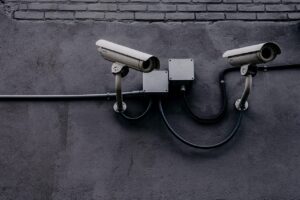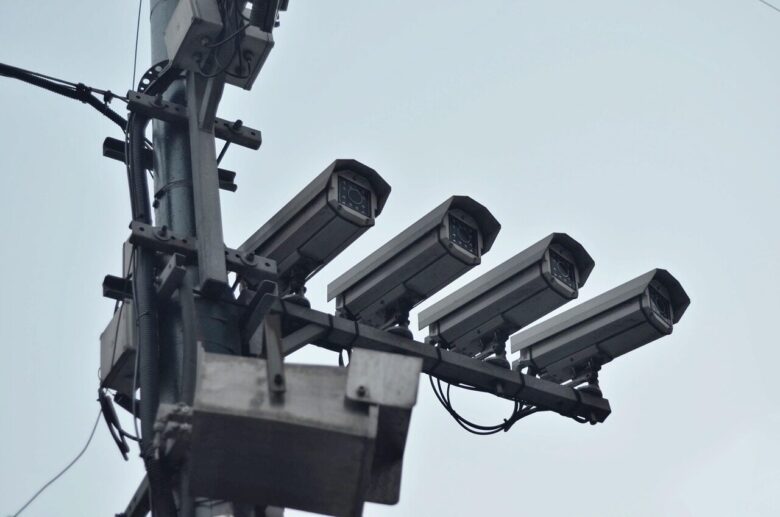
Smart camera privacy tips matter because a home security camera does more than record movement near a door or driveway. It may capture faces, voices, routines, package deliveries, children, guests, pets and private moments inside the home. A camera can improve safety, but only when it is installed and managed with privacy in mind.
Many homeowners set up smart cameras quickly, connect them to Wi-Fi, accept the default settings and forget about them. That is where problems often begin. Weak passwords, shared app access, old firmware, cloud storage settings and poorly placed cameras can expose more personal information than expected.
The good news is that most privacy risks can be reduced with practical habits. You do not need to be a cybersecurity expert. You only need to understand what the camera can see, who can access it, where the recordings go and which settings deserve a second look.
Important safety note: smart cameras are connected devices, so privacy depends on both the camera settings and the security of your home network. Before sharing access, storing recordings or buying a new camera, check the manufacturer’s official security information and avoid using unknown apps or default passwords.
Why Smart Camera Privacy Tips Matter at Home
A smart camera is different from an old offline security camera because it usually connects to an app, cloud account, Wi-Fi network and sometimes voice assistants or smart home hubs. This makes it convenient, but it also creates more places where privacy can be affected.
For example, a doorbell camera may record visitors, delivery workers and neighbors walking near your property. An indoor camera may capture conversations, work calls or family routines. Even if nobody hacks the device, poor placement or careless sharing can still create privacy problems.
In practice, the biggest issue is not always the camera itself. It is the combination of small decisions: using the same password everywhere, giving app access to too many people, leaving motion alerts too broad, or keeping a camera active in a room where people expect privacy.
Choose Cameras With Privacy Features Before You Buy
Privacy starts before installation. A cheap camera may look attractive, but price should not be the only factor. A good smart camera should offer clear security updates, two-factor authentication, encryption, user access controls and understandable storage options.
Before buying, check whether the manufacturer explains how long the device receives security updates. Unsupported smart home devices can become a problem over time because vulnerabilities may remain unpatched. If the company does not clearly explain updates or account protection, that is a warning sign.
| Feature to Check | Why It Matters | What to Avoid |
|---|---|---|
| Two-factor authentication | Adds another step before someone can access your camera account. | Camera apps that rely only on a password. |
| Security updates | Helps fix weaknesses discovered after the device is sold. | Brands that do not mention firmware or update support. |
| Local and cloud storage options | Lets you decide where recordings are stored. | Systems that force cloud recording without clear controls. |
| User permissions | Allows you to control who can view, share or manage cameras. | Apps where every invited user gets full control. |
| Privacy zones | Blocks areas that should not be recorded, such as a neighbor’s window. | Cameras with no way to limit the recording area. |
Set Up Your Camera Account the Right Way
The account connected to your camera is often more important than the device on the wall. If someone gets into the account, they may be able to view live video, change settings, review recordings or add another user.
-
Create a unique password.
Use a password that is not used for email, social media, banking or shopping accounts. Reused passwords are risky because a leak from one service can affect another account.
-
Turn on two-factor authentication.
This adds another verification step, usually through an app, text message or email. It is especially useful for camera accounts because video access is highly sensitive.
-
Review account recovery options.
Make sure the recovery email and phone number belong to you. If an old email address is still connected, update it before installing more devices.
-
Remove users who no longer need access.
A common mistake is giving access to relatives, guests, contractors or former residents and forgetting to remove them later. Review shared users regularly.
-
Check login history if the app offers it.
Some apps show recent sessions or connected devices. If you see a phone, browser or location you do not recognize, change the password and contact support.
Secure the Wi-Fi Network Your Cameras Use
A smart camera depends on your home network. If the router is poorly protected, every connected device becomes more exposed. This is why camera privacy should include router security, not only camera settings.
Use a strong Wi-Fi password and make sure your router is using modern encryption, such as WPA2 or WPA3 when available. Avoid leaving the router with the default admin password printed on the device. That admin password controls the router settings, and it should be changed during setup.
For extra separation, many homeowners use a guest network or a separate IoT network for smart devices. This can limit how much access cameras, smart plugs, bulbs and other connected devices have to personal phones, laptops and work computers.
- Change the default router admin password.
- Use a strong Wi-Fi password that is not shared publicly.
- Keep router firmware updated.
- Disable remote router management if you do not use it.
- Create a separate network for smart home devices when your router supports it.
- Remove old devices you no longer recognize from the network list.
Place Cameras Where They Protect Without Overexposing Your Life
Camera placement is one of the most overlooked privacy decisions. A camera may be secure from hackers but still placed in a way that records too much. The goal is to monitor important areas without creating unnecessary surveillance inside your own home.
Outdoor cameras should focus on your entry points, driveway, garage or walkway. Avoid aiming them directly into a neighbor’s window, private yard or area where people reasonably expect privacy. If the app offers privacy zones, use them to block sensitive areas from recording.
Indoor cameras require even more care. Avoid placing them in bedrooms, bathrooms or areas where family members may feel constantly watched. If you use an indoor camera for pets, elderly care or temporary monitoring, consider turning it off when it is not needed.
Control Recordings, Audio and Cloud Storage
Many smart cameras record more than video. They may also capture audio, store clips in the cloud, detect faces, recognize packages or save event history. These features can be useful, but they should not be left on automatically without understanding what they do.
Cloud storage is convenient because recordings remain available even if the camera is damaged or stolen. The tradeoff is that your footage is stored on company servers, subject to the provider’s policies, security practices and account settings. Local storage gives more direct control, but it may be lost if the device or memory card is taken.
Audio recording deserves special attention. In some places, recording conversations may have legal restrictions. Even when legal, it can be invasive for guests, workers or family members. If audio is not necessary, turn it off.
| Setting | Privacy Benefit | Practical Tip |
|---|---|---|
| Motion zones | Reduces unnecessary recording. | Focus alerts on doors, gates and driveways. |
| Audio recording | Limits capture of private conversations. | Disable it unless you truly need sound. |
| Cloud retention | Controls how long clips remain stored. | Choose the shortest useful retention period. |
| Shared access | Limits who can view live feeds and clips. | Give access only to people who need it. |
| Status lights | Shows when a camera is active. | Keep indicator lights on when possible. |
Common Smart Camera Privacy Mistakes to Avoid
One common mistake is treating camera setup as a one-time task. Privacy settings should be reviewed after app updates, router changes, family changes or moving a camera to a new room. A setting that made sense six months ago may no longer be appropriate.
Another mistake is giving full access when limited access would be enough. If a family member only needs alerts, they may not need permission to change settings, download clips or invite new users. When an app offers permission levels, use them carefully.
A third mistake is ignoring old cameras. If a device no longer receives updates, has connection problems or uses an app that has not been maintained, replacing it may be safer than trying to keep it running. A camera that protects your front door should not become the weakest point in your home network.
What to Do If You Suspect Someone Accessed Your Camera
Warning signs can include unfamiliar users in the app, changed settings, unexpected camera movement, strange sounds from two-way audio, login alerts you did not trigger or recordings you do not recognize. These signs do not always prove a breach, but they should be taken seriously.
-
Disconnect the camera temporarily.
If you believe someone is viewing the camera without permission, unplug it or disconnect it from Wi-Fi while you secure the account.
-
Change the account password.
Use a new, unique password. If the same password was used anywhere else, change it there too.
-
Enable or reset two-factor authentication.
If two-factor authentication was off, turn it on. If it was already on, review trusted devices and recovery options.
-
Remove unknown users and sessions.
Check the app for shared users, connected devices or login history. Remove anything you do not recognize.
-
Update the camera and router.
Install available firmware updates. If the issue continues, reset the camera and contact the manufacturer’s official support.
If you believe recordings were stolen, shared or used to threaten someone, contact the platform, the camera manufacturer and the appropriate local authority. For serious incidents, preserve screenshots, emails, alerts and account activity before deleting anything.
When to Contact Support or Replace the Device
Contact the manufacturer’s official support if the camera behaves strangely after a password change, refuses updates, shows unknown users you cannot remove or keeps reconnecting to an account you do not control. These issues may require help from the company that manages the device software.
Replacement may be the better option when the camera is old, unsupported, tied to an abandoned app or missing basic protections like two-factor authentication. A security device should not depend on outdated software or unclear account controls.
Before replacing a camera, check whether your router and smart home setup also need attention. Buying a better camera will not solve everything if the Wi-Fi password is weak, the router firmware is outdated or too many people still have access to the camera account.
Conclusion
Smart camera privacy tips are not only about stopping hackers. They are about using cameras in a way that protects your home without exposing private routines, conversations or people who did not agree to be recorded.
The safest approach is simple: buy from a reliable manufacturer, secure the account, protect the Wi-Fi network, limit shared access, review storage settings and place cameras only where they are truly needed. Small settings can make a big difference.
If a camera no longer receives updates, behaves suspiciously or gives you little control over privacy, it may be time to contact official support or replace it. A smart camera should make your home feel safer, not turn everyday life into something unnecessarily exposed.
FAQ
1. Can smart cameras be hacked?
Yes, smart cameras can be hacked, especially when accounts use weak passwords, two-factor authentication is disabled, firmware is outdated or the home network is poorly secured. The risk can be reduced by using strong account protection, keeping software updated and buying cameras from manufacturers with clear security practices.
2. Is cloud storage safe for smart camera recordings?
Cloud storage can be safe when the provider uses strong security controls and your account is well protected. However, it also means your recordings are stored outside your home. Review retention settings, account access, encryption information and the company’s privacy policy before relying on cloud storage.
3. Should I turn off audio recording on my camera?
If audio is not essential, turning it off is often a good privacy choice. Audio can capture private conversations from family members, guests, workers or neighbors. In some locations, recording conversations may also involve legal rules, so it is wise to check local requirements.
4. How often should I review my camera privacy settings?
Review settings at least every few months and whenever something changes, such as a new router, new household member, app update, moved camera or shared account access. Also check settings after any suspicious alert or unexpected login notification.
Official References
- Federal Trade Commission – How To Secure Your Home Security Cameras
- CISA – Home Network Security
- NIST – Cybersecurity for the Internet of Things Program
The Connected Home Shield Editorial Team publishes practical, beginner-friendly content about smart home devices, home network security, IoT setup, automation, energy efficiency, privacy, and connected-home troubleshooting. Our guides are prepared for general educational purposes, with a focus on clear instructions, safer configurations, realistic expectations, and accessible information for users with different levels of technical experience.