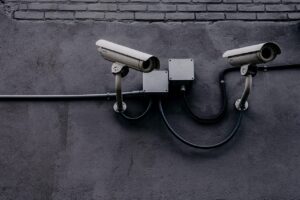
Common IoT security mistakes can quietly turn a smart home into an easy target. A camera, smart TV, speaker, thermostat, doorbell, or light bulb may look harmless, but every connected device becomes another doorway into your home network if it is poorly configured.
The risk is not only that someone could control a device remotely. A weak IoT setup can expose video feeds, leak personal data, slow down your internet, allow suspicious traffic, or create a path toward more sensitive devices such as phones, laptops, and work computers.
The good news is that most home IoT risks come from simple mistakes. You do not need to be a cybersecurity expert to reduce them. You mainly need to know which settings matter, which habits create risk, and when an old or unsupported device should no longer be trusted on your main network.
Important security note: before changing advanced router settings, save your current configuration if your router allows it, and confirm the steps in your router or device manufacturer’s official support page. Security settings can vary by brand, model, and firmware version.
Why IoT Devices Can Put a Home Network at Risk
IoT devices are often designed for convenience first. Many of them need to connect quickly, work through a mobile app, and remain available from outside the home. That convenience can be useful, but it also means the device may depend on cloud accounts, remote access features, firmware updates, microphones, cameras, location data, or stored Wi-Fi credentials.
The problem becomes bigger when people connect many smart devices over time without reviewing security. One smart plug may not seem important. Ten smart devices from different brands, each with its own app, account, permissions, and update schedule, become much harder to manage.
In practice, IoT security problems often appear after a small change: a router is replaced, a device stops receiving updates, a guest connects to the main Wi-Fi, or a camera is installed using the default setup. These small decisions can create weak points that remain unnoticed for months.
Common IoT Security Mistakes Home Users Make
The most dangerous mistakes are usually basic ones. They happen because the device works immediately after setup, so the user assumes everything is fine. But “working” and “secure” are not the same thing.
| Mistake | Why It Is Risky | Safer Approach |
|---|---|---|
| Keeping default passwords | Default credentials may be easy to guess or find online. | Use a strong, unique password for every device and account. |
| Using one Wi-Fi network for everything | A compromised IoT device may reach laptops, phones, or work devices. | Place smart devices on a guest network or separate IoT network when possible. |
| Ignoring firmware updates | Old software may contain known security flaws. | Enable automatic updates or check updates regularly. |
| Leaving remote access enabled | Unneeded internet exposure can increase attack opportunities. | Disable remote access features you do not actually use. |
| Buying unknown low-cost devices | Some devices have weak support, poor update policies, or unclear data practices. | Choose brands with visible security settings, support pages, and update history. |
A common mistake is treating all smart devices as equal. A smart light bulb, indoor camera, baby monitor, smart lock, and voice assistant do not carry the same level of risk. Devices with cameras, microphones, locks, payment features, or access to personal routines deserve more careful setup.
Using Weak Passwords or Reusing the Same Login
Password reuse is one of the easiest ways to lose control of smart home accounts. If you use the same password for a camera app, email account, shopping account, and streaming service, one data breach elsewhere can create risk for your home devices.
For IoT accounts, the password should be long, unique, and stored in a password manager if possible. The router administrator password also needs special attention. This is different from the Wi-Fi password. The administrator password controls the router settings, while the Wi-Fi password controls who can join the network.
When available, enable multi-factor authentication on smart home accounts. This adds another step, such as a code or app approval, before someone can log in. It is especially important for cameras, doorbells, smart locks, cloud storage, and any account that controls multiple devices.
Keeping IoT Devices on the Same Network as Personal Devices
Many homes use one Wi-Fi network for everything: phones, laptops, smart TVs, cameras, speakers, printers, tablets, and visitors. This is simple, but it is not always the safest setup. If one poorly secured device is compromised, it may have a better chance of interacting with other devices on the same network.
A safer option is to use a guest network for IoT devices. Many modern routers allow this from the router app or web panel. The goal is simple: keep less trusted smart devices away from your main personal devices.
-
Open your router settings.
Use the official router app or web address listed by the manufacturer. Avoid random setup pages found through search ads, because fake support pages can imitate real brands.
-
Create a guest network or IoT network.
Give it a clear name that does not reveal personal details, your address, or your router model. Use WPA2 or WPA3 encryption if available.
-
Move smart devices gradually.
Start with smart TVs, speakers, plugs, bulbs, and cameras. After moving each device, test whether its app, automation, or voice control still works normally.
-
Keep phones and computers on the main network.
Your personal devices usually need stronger trust and better performance. Separating them from IoT devices reduces unnecessary exposure.
-
Review device access after setup.
If a device stops working after network separation, check whether it truly needs local network access or whether the manufacturer provides a safer setup option.
This step is especially useful when you have security cameras, older smart devices, or devices from brands you do not fully trust. It may not be perfect, but it adds a practical barrier between convenience devices and your most sensitive equipment.
Ignoring Updates and Unsupported Devices
Firmware is the software inside a device. Just like a phone or computer, an IoT device may need firmware updates to fix bugs and security weaknesses. The difference is that many people never check updates for smart home products after the first setup.
Some devices update automatically. Others require opening the app, visiting the manufacturer’s website, or manually installing an update. If a device has not received updates for a long time, check whether the manufacturer still supports it.
An unsupported device is not automatically dangerous, but it deserves caution. If it controls something sensitive, records audio or video, connects to the internet, or has remote access enabled, replacing it may be safer than leaving it online indefinitely.
Leaving Remote Access and Unused Features Turned On
Remote access lets you control a device when you are away from home. This can be useful for cameras, thermostats, alarms, and smart locks. But if you never use remote access, leaving it enabled creates unnecessary risk.
The same idea applies to features such as Universal Plug and Play, open ports, unused integrations, old automation links, and third-party app permissions. The more paths a device has to communicate, the more settings you need to trust.
- Disable remote access if you only use the device at home.
- Remove smart home integrations you no longer use.
- Delete old users from shared device accounts.
- Turn off microphones or cameras when they are not needed, if the device allows it.
- Review app permissions on your phone, especially location, microphone, camera, and local network access.
- Remove old devices from your router’s connected device list when they are no longer in use.
A useful rule is to keep only the features that serve a real purpose. Convenience should not mean leaving every possible access point open by default.
Buying Smart Devices Without Checking Security First
Price matters, but the cheapest IoT device can become expensive if it creates privacy or security problems. Before buying a smart camera, doorbell, lock, router, baby monitor, or alarm system, check more than the product rating.
Look for signs that the company takes security seriously. Does it offer firmware updates? Does it have a real support page? Does the app support multi-factor authentication? Can you change privacy settings? Is the product still actively sold and supported?
Be careful with devices that require unusual permissions, have unclear brand identity, depend on an unknown app, or have many user complaints about connection problems and abandoned updates. A smart device should not need excessive access to your phone or home data just to perform a simple function.
How to Review Your Smart Home Security
A simple review every few months can reduce many IoT security mistakes. You do not need to audit everything in one day. Start with the router, then review your most sensitive devices first.
-
List connected devices.
Open your router’s connected devices section and identify anything you do not recognize. Unknown names are common, but every device should eventually be accounted for.
-
Change weak passwords.
Prioritize your router, camera apps, smart lock apps, and main smart home platform accounts. Do not reuse passwords from email or social media accounts.
-
Check update settings.
Enable automatic updates where possible. For devices without automatic updates, add a reminder to check the app or manufacturer support page.
-
Separate higher-risk devices.
Move cameras, smart TVs, unknown-brand devices, and older IoT products to a guest or separate network if your router supports it.
-
Remove what you no longer use.
Disconnected devices should also be removed from apps and accounts. Old device entries can leave permissions, cloud access, or shared users behind.
One detail many people ignore is account cleanup. If you once shared camera access with a family member, guest, tenant, technician, or former roommate, check whether that access still exists. Device security is not only about passwords; it is also about who still has permission.
When to Get Help or Replace a Device
You should consider getting help if your router shows unknown devices that keep returning, your camera logs show access at strange times, your smart home account reports suspicious sign-ins, or your internet connection becomes unstable after connecting a specific device.
Replacing a device may be the better decision when the manufacturer no longer provides updates, the app has been abandoned, the device forces weak security settings, or it cannot work without exposing sensitive features. This is especially true for cameras, locks, baby monitors, alarms, and routers.
If you work from home, handle sensitive business information, or use the same network for personal and professional devices, it is worth taking network separation more seriously. A basic router setup may be enough for casual use, but mixed home and work environments benefit from cleaner separation and stronger account protection.
Conclusion
Common IoT security mistakes usually come from convenience: default passwords, one shared Wi-Fi network, ignored updates, unnecessary remote access, and devices bought without checking long-term support. Each mistake may seem small, but together they can weaken your entire home network.
The safest approach is practical: secure the router first, use strong unique passwords, enable multi-factor authentication, separate smart devices when possible, update firmware, and remove devices or permissions you no longer need.
You do not need a complex cybersecurity setup to make your smart home safer. Start with the devices that can see, hear, unlock, record, or control important parts of your home, then review the rest step by step.
FAQ
1. Are IoT devices dangerous for every home network?
IoT devices are not automatically dangerous, but they can create risk when they are poorly configured, outdated, or connected to the same network as sensitive devices. The risk increases with cameras, locks, microphones, and devices that allow remote access.
2. Should I put all smart devices on a guest network?
In many homes, placing smart devices on a guest network is a good safety step. It helps separate less trusted devices from phones, laptops, and work computers. However, some automations may need adjustment after separation, so it is best to move devices gradually and test them.
3. How often should I update IoT devices?
Enable automatic updates whenever the device supports them. If automatic updates are not available, check the device app or manufacturer support page every few months. Cameras, routers, smart locks, and security systems should be checked more carefully because they carry higher risk.
4. What should I do with old smart devices?
If an old smart device no longer receives updates, remove it from your main network and consider replacing it, especially if it has a camera, microphone, lock control, or remote access. At minimum, reset it, remove unused accounts, and avoid giving it access to sensitive devices.
Official References
- Federal Trade Commission — Securing Your Internet-Connected Devices at Home
- CISA — Secure Our World
- NIST — IoT Device Cybersecurity Guidance
The Connected Home Shield Editorial Team publishes practical, beginner-friendly content about smart home devices, home network security, IoT setup, automation, energy efficiency, privacy, and connected-home troubleshooting. Our guides are prepared for general educational purposes, with a focus on clear instructions, safer configurations, realistic expectations, and accessible information for users with different levels of technical experience.